Verify a photo, video or web page
Before you rely on a photo, a video or a post you found online, check it: who published it, when it first appeared, and whether where and when it was really taken matches the claim. Viokit follows the checks of the Berkeley Protocol on Digital Open Source Investigations, in its three phases: preservation (keep it exactly as found), verification (where it came from, when, where it was taken) and analysis (what it adds up to). Each check you make is recorded under your name, with its evidence, so it is in the case history and the report.
Viokit runs the look-ups and works out the figures. It never decides whether an item is genuine. You make that call with Record your check….
Capture a web page or post
A page can change or vanish. Capture it first, before you do anything else with it.
Open Records, then Exhibits, and press Capture a web page…. Give the whole address (https://…), and an
exhibit reference if you use your own labels. Leave Also take a full-page screenshot ticked. Press
Visit and capture.
Capturing visits the page. The request comes from your computer, so the site's owner can see it in their logs: your network's address, the time and the browser. If that matters, do not capture: save it to the Wayback Machine instead (below), which the Archive's own computers fetch.
Viokit keeps the capture as an exhibit, with its type set to web page:
| What is kept | Exhibit |
|---|---|
| Every request and response, with all headers, through each redirect, as one WARC file (the format web archives use) | the exhibit itself |
| The page as the server sent it | <ref>/response |
| A full-page screenshot | <ref>/screenshot |
| The page as the browser drew it, after its scripts ran | <ref>/rendered |
| The page and what it loaded, as one MHTML file (Chrome only) | <ref>/mhtml |
| The browser's own WARC file | <ref>/browser |
Each file has its SHA-256 fingerprint. The custody log starts with Received: who captured the page, when, how the request reached the internet (directly or through a proxy), the final address after redirects, the server's answer, and the SHA-256 of every file. Pages taller than 16,000 pixels are cut off in the screenshot, and its title says so.
If no browser is available, Viokit still keeps the WARC file and the page as sent. The custody log says why there is no screenshot.
Work through the checks
Pick the exhibit. Verify sits below its custody log. On a web address in the dossier, the same checks are under Verify this page.
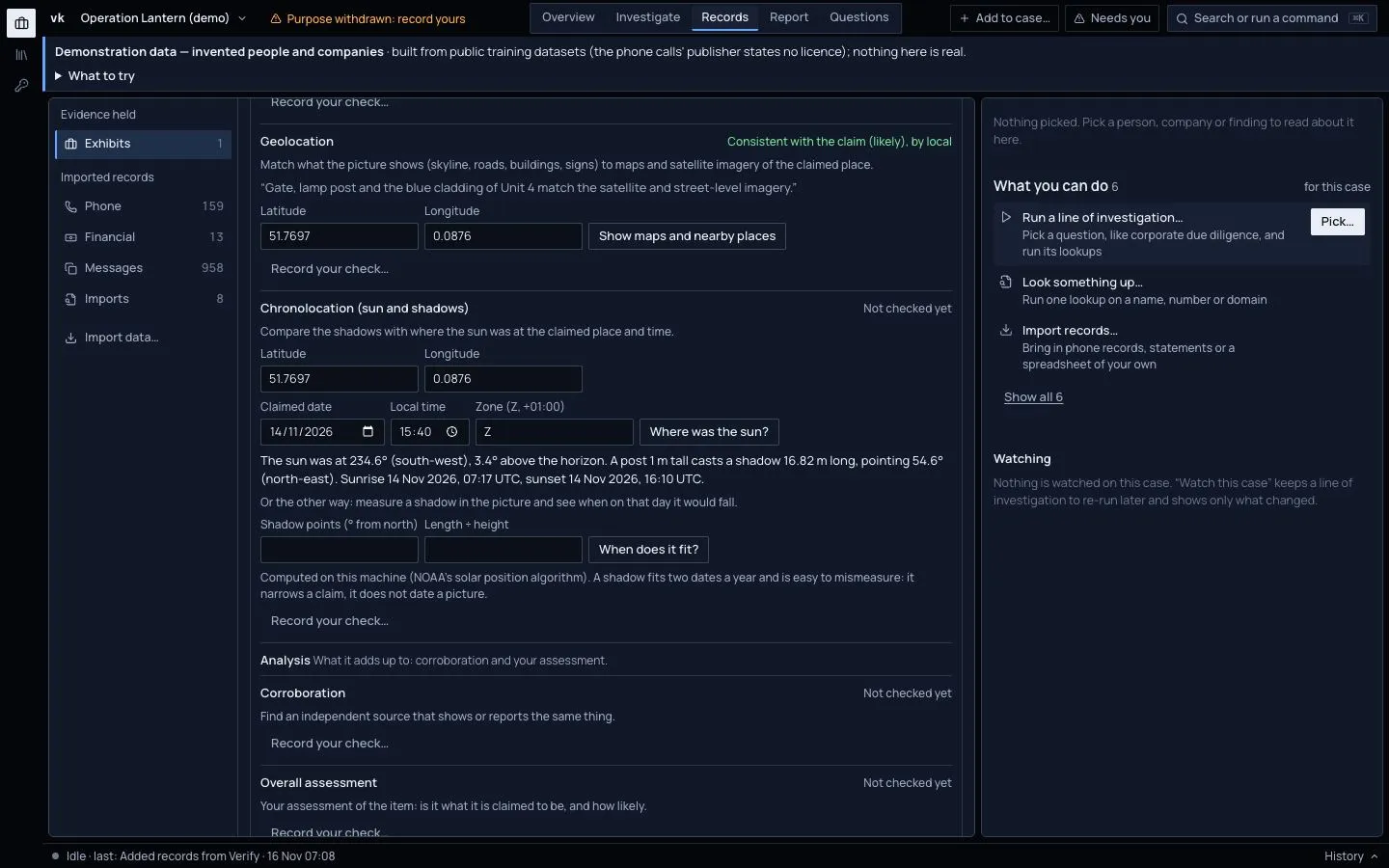
The coloured rule beside each check shows how far it has got. None means not checked yet. Amber means Viokit ran a look-up for it but you have not given your view. Green means you have recorded a check. Each check names what to do. Its buttons run a look-up or open an aid. Record your check… is the only button that records a conclusion: choose whether what you saw is consistent with the claim, contradicts it or is inconclusive, how likely you think it is (the probability yardstick), and what you compared. A check cannot be changed. To revise one, record another.
Preservation
- Preserved with hashes: done when the page is captured. A file you added as an exhibit already has its fingerprint.
- Independent archive copy: Save to the Wayback Machine asks the Internet Archive to keep its own copy. It needs no key. The address of the copy is kept, linked to the page. The Archive sometimes refuses a site or limits saves; Viokit then says it returned no copy. Try again later.
Verification
- Source and uploader: who published it, from which account, and what else that account has posted. This is your research, so record what you found.
- First appearance: Find the first archived copy asks the Internet Archive for the earliest copy it holds of the address. For a photo, give the address where it was published. Viokit then looks for the photo's exact bytes at that address. The date is recorded as when the Archive first saw it. The item is at least that old, but could be much older. It is not the date the item was made. Reverse-image search links opens Google Lens, Yandex, Bing and TinEye. Viokit does not visit or read them. With an address, each link asks the service about that address. Without one, upload the file yourself (Download original in the Evidence panel).
- Metadata: read the file's metadata under Analyse the file (see Add an exhibit and analyse it). The place and time in it fill in the claim below. Metadata can be edited, so check it like any other claim.
- Geolocation: give the claimed latitude and longitude and press Show maps and nearby places. You get links to open the place on OpenStreetMap, satellite and aerial imagery (Esri, Google, Bing), street-level pictures (Mapillary) and Google Earth. You also get what OpenStreetMap names there: the nearest feature, the road, the neighbourhood, the town and the country. That look-up is one request, keyless and rate-limited, and the answer is kept as evidence. Compare the skyline, roads, buildings and signs yourself.
- Chronolocation (sun and shadows): give the place, the claimed date, the local time and its zone (
Zfor UTC,+01:00and so on). Press Where was the sun?. You get its direction and height, and the direction and length of a 1 m post's shadow, to compare with the shadows in the picture. To work the other way, measure a shadow in the picture: its direction from true north, and its length divided by the height of what casts it. When does it fit? lists the times that day when it would fall like that. The figures use NOAA's solar position method and are computed on your computer.
A shadow fits the sun at two times of year, and it is easy to measure wrongly from a photo taken at an angle. The sun narrows a claim. It does not date a picture.
Analysis
- Corroboration: another source, independent of this one, that shows or reports the same thing.
- Overall assessment: your view of the item. Is it what it is claimed to be, and how likely is that?
When you record a check after using an aid, what the aid worked out is kept with the check (the sun's position, or the places named). The reader of your report can see what your conclusion rested on.
For agents
Every step here can also be run by an AI agent, through the same operations the console uses, and what it records is the same.