How to look things up and explore connections
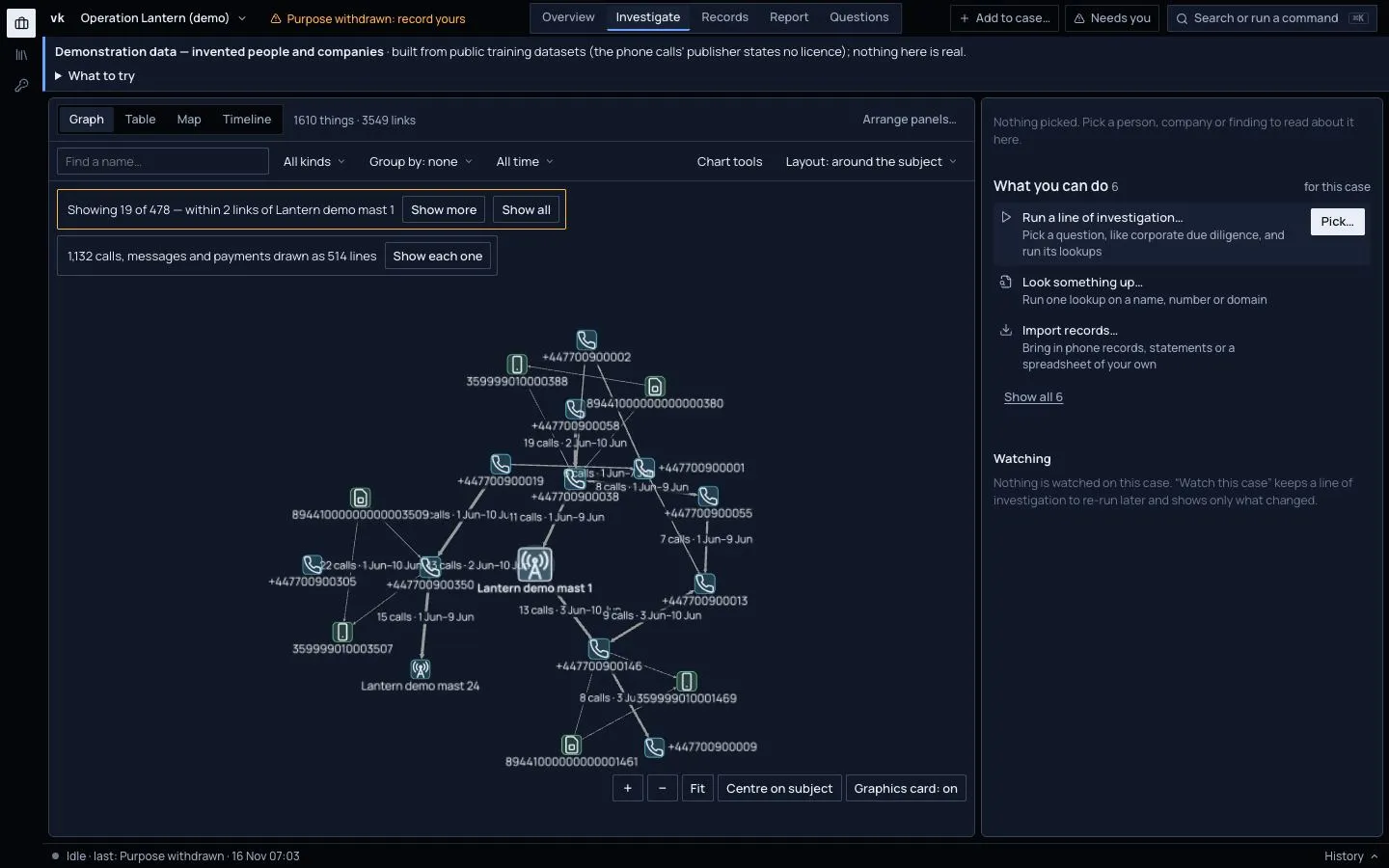
Everything here happens in Investigate. Its four views, Graph, Table, Map and Timeline, share one filter row: Find a name…, All kinds, Group by, the time range, and on the Graph Chart tools and Layout.
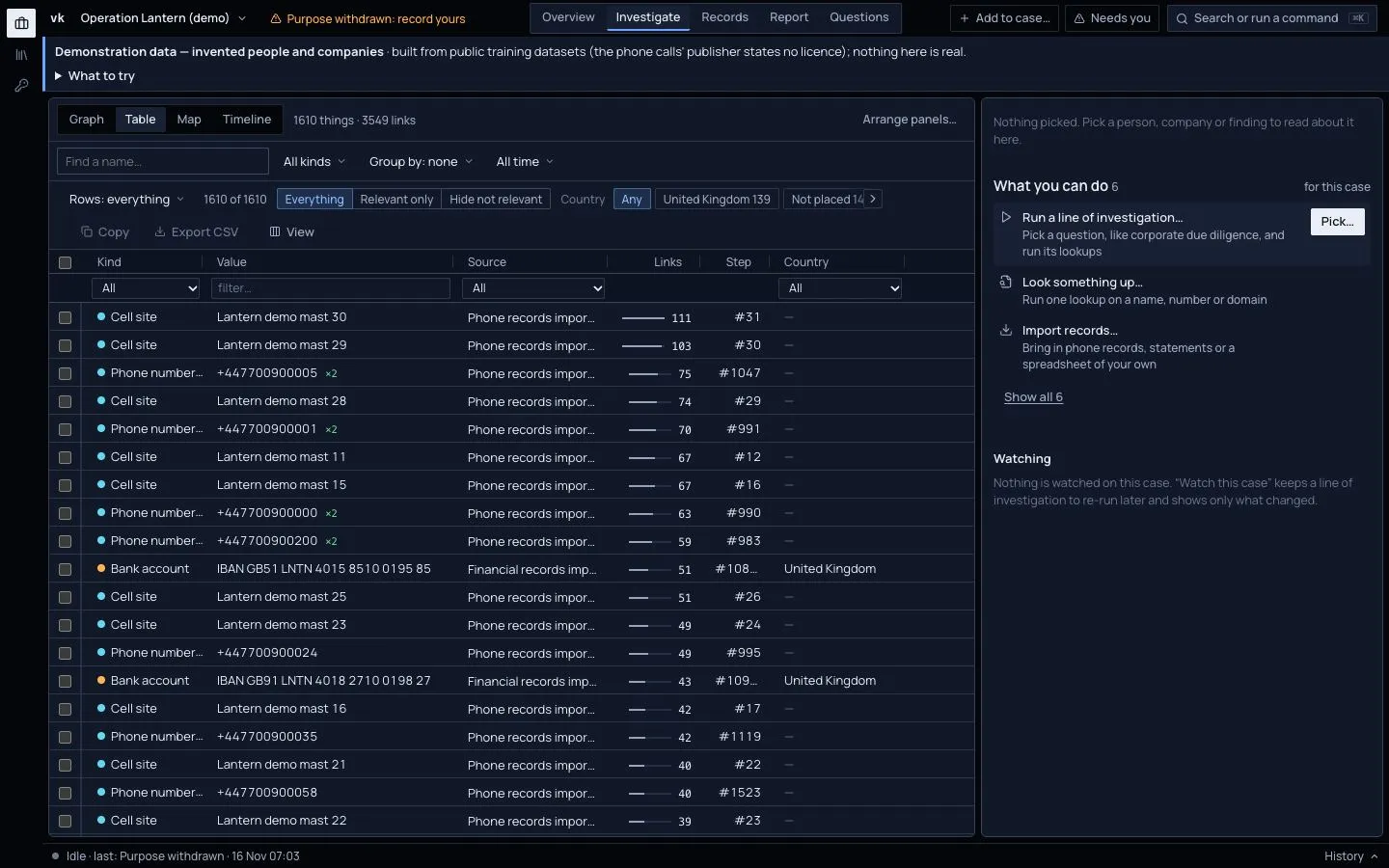
The Table lists every thing in the case, with its kind, value, source, number of links and country. Filter each column under its heading; click a row to open its dossier.
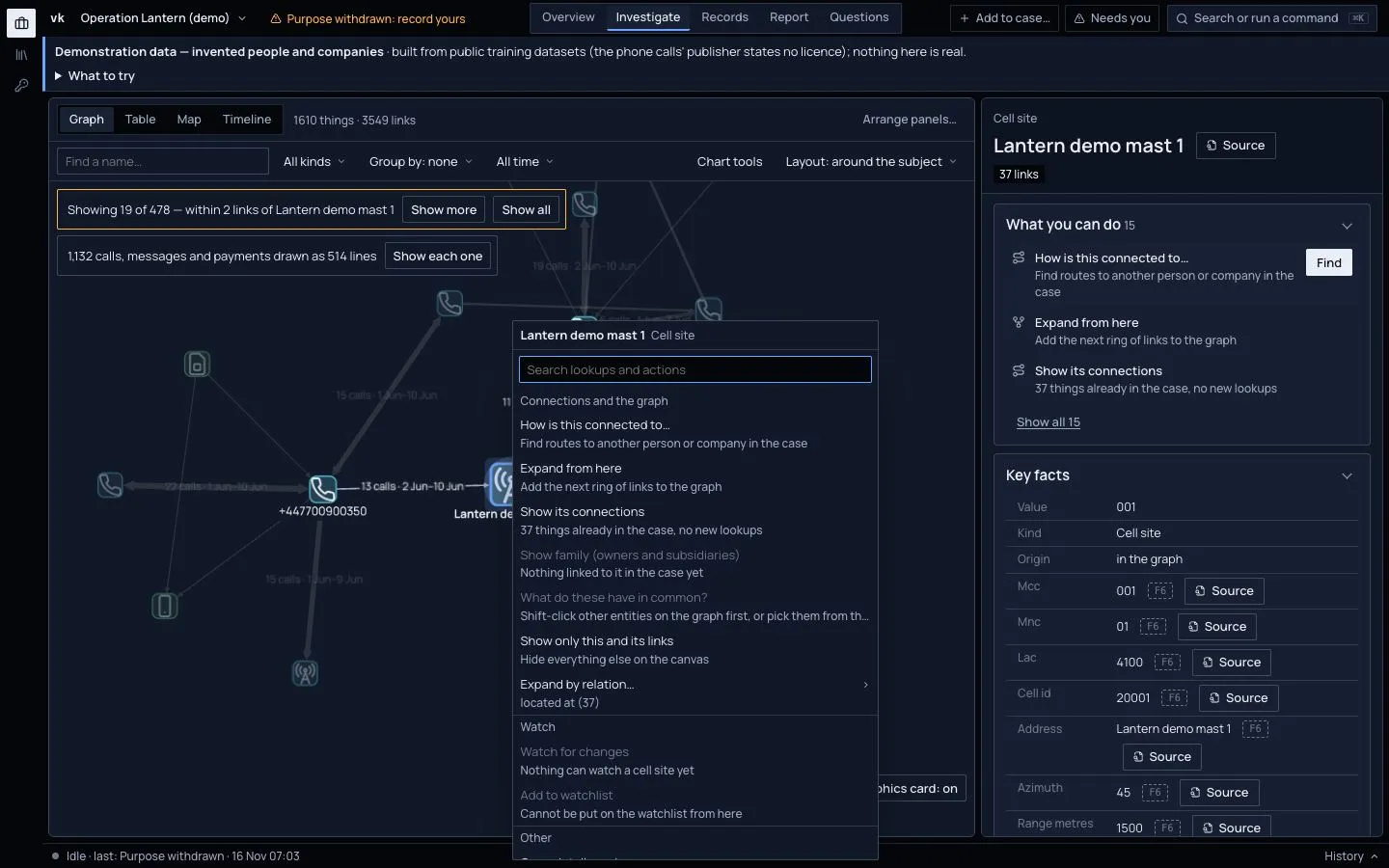
Look something up from a thing already in the case
- Right-click it on the Graph. Or pick it and press
Q. - A menu opens with a search box at the top (Search lookups and actions) and its actions in groups: Connections and the graph, Watch, lookups, and Other. Type to narrow it.
- The menu lists every lookup that accepts this kind of thing, in plain words: "Companies House, officers". Each says whether it is free, needs a key, or uses a local data pack. A lookup that cannot run says why.
- Pick one to run it. The result joins the case. The case bar shows it running.
Run all runs every lookup that can run. It does not run lookups you are not allowed to run yet, such as person lookups before you have recorded a purpose.
The same lookups are listed under What you can do in the dossier on the right when something is picked.
Add something you already know
Press Add to case… in the case bar, at the top right. Or press Ctrl K (⌘K on a Mac), type the value, and pick Add “…” to the case. This works at any time, not only in an empty case.
- Type the value: a company name or number, a website, an email address, a phone number, an IBAN, a Bitcoin or Ethereum address, a person's name or a postcode.
- The dialog says what it took it for, for example "Looks like a phone number". If that is wrong, change What it is.
- Press Add to the case. Nothing is looked up yet. The item is drawn on the Graph, centred and picked, and its dossier lists the lookups you can run on it.
A phone number starting 0 is read as a UK number. An IBAN or crypto address whose check digits do not hold is refused, so a mistyped character is caught.
Find a thing on the chart
Type in Find a name… and press Enter, or pick a match. The thing is picked and drawn on the Graph, centred, even when the chart was showing only part of the case.
Look something up that is not yet in the case
Press Look something up… in What you can do (with nothing picked), or open Sources & keys in the rail, then Look something up. Pick a source, type what to look up, and run it. The answer is added to the case. You can also press Ctrl K (⌘K on a Mac) and type "Look something up".
Show what a thing is already connected to
These need no new lookups. They read what the case already holds.
- Show its connections reveals the links around the thing in the Graph.
- Show only this and its links hides everything else.
- Expand by relation… lets you open just one kind of link, for example "director of (4)".
- Hide takes a thing off the chart. It stays in the case.
Expand from here
Choose Expand from here. The thing and everything one link away are drawn on the view you have open, named in a Showing: … ✕ bar above it. Press ✕ to see the whole case again.
Use Kinds ▾ in the filter row to leave out kinds of thing you do not need.
How are these connected?
Use this when you have two things and want the link between them.
- Right-click the first and choose How is this connected to…, or pick it and press that action in its dossier.
- Type part of the other thing's name under Search the case and pick it.
- The routes found are drawn on the Graph and named in a bar such as Showing how Imogen Starke and Iaman Informant connect: 3 things, 2 links ✕. Everything else is dimmed. Press ✕ to see the whole case again.
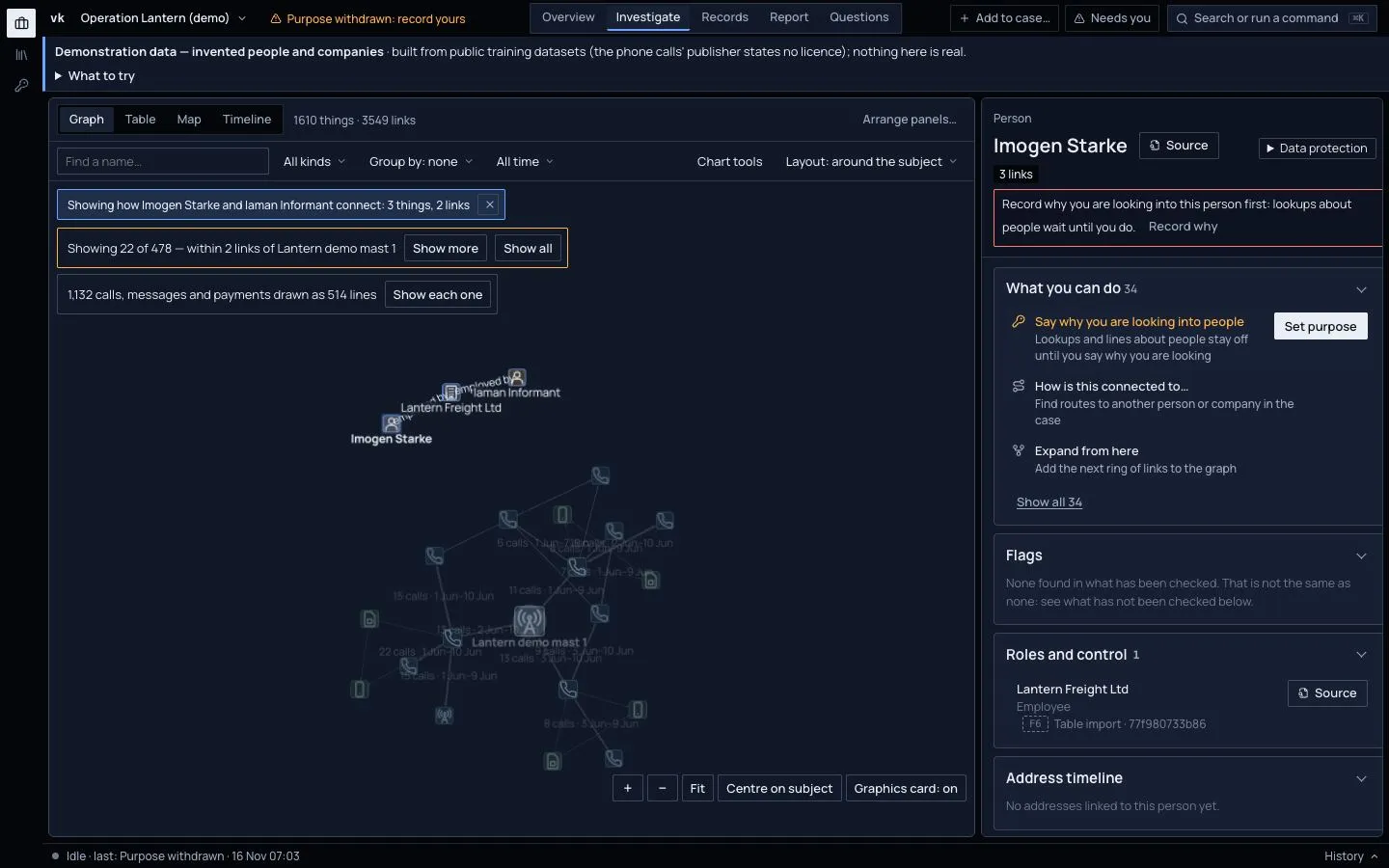
A route is a lead, not a finding. Read the links on it. A route through a shared address or a common name can be coincidence.
Routes found are kept, and the report has a Connections found section.
What do these have in common?
Use this for several things, for example three companies.
- Right-click a thing and choose Pick to compare. Do this for each.
- Right-click one of them and choose What do these have in common?.
- What they all share (a director, an address, a host, a phone number) is drawn on the Graph with a Showing: … ✕ bar.
Choose Unpick to take a thing out of the set.
Mark what matters
Choose Mark relevant or Mark not relevant from the menu. This only changes what you see. Nothing is deleted. Add note writes a note on the thing. Open details and sources opens the original records. Copy value copies the name or number.