Docs
Viokit user guide
Viokit helps you find out who and what is behind a company, a website, a person, a phone number or a bank account. It looks things up in public records, keeps every answer with the record it came from, and shows you how far each one can be trusted.
New to Viokit? Start here
Three short tutorials, each one job from start to finish. Take them in order: the first teaches the screen, the next two build on it.
- Your first company caseStart a case on a real public company, read what was found, review a match and write a report. About ten minutes.
- Who is behind a websiteFrom a web address to who registered it, where it is hosted and what else it connects to.
- Researching a person lawfullyRecord your purpose, research, then handle restriction, subject access and erasure.
Start from what you have
Pick the lead in front of you. Each card goes straight to the steps.
A company
Who owns it, who runs it and what it is connected to.
A website
Who registered it, where it is hosted, what else it links to.
A person
Record why first, then research, and handle the person's rights.
A phone number, email or IBAN
What the number, address or IBAN itself says, checked on your machine.
A crypto address
What a Bitcoin or Ethereum address holds and where value moved.
Records you hold
Phone records, device extractions, bank statements and your own spreadsheets.
Exhibits and verification
Add an item of evidence, keep its custody, check it against its claim.
Reports and sharing
Write the report, export the chart, hand the case to a colleague.
Reference
Look a word, a grade or a shortcut up.
Set up and housekeeping
Offline data, keys, add-ons and AI, all optional.
Viokit can't do something your work needs yet?Ask for a feature
Getting around
Viokit user guideStart Viokit
Viokit runs as a single app on your own machine, and your cases stay there. It is in early access: request early access and we will help you set it up.
Keys are optional
Many sources need no setup at all. A few ask for a free key, which you enter once.
Settings in the console shows which keys are set (yes or no, never the value) and which lookups each key opens. See Set up keys.
Data packs let you work offline
A data pack is a local copy of a big public list, such as sanctions lists or the global company identifier register. Once installed, lookups against it run on your computer. They need no key and no internet. See Install data packs and work offline.
Try it on the demo case
Not ready to look anything up? On an empty case, press Open the demo case under Start here, or press Ctrl K (⌘K on a Mac) and type "demo". Operation Lantern opens as a new case with phone records, payments, USB and email traces already in. Every person and company in it is invented. A banner says so and lists What to try. The pictures in this guide are all of the demo case.
The screen
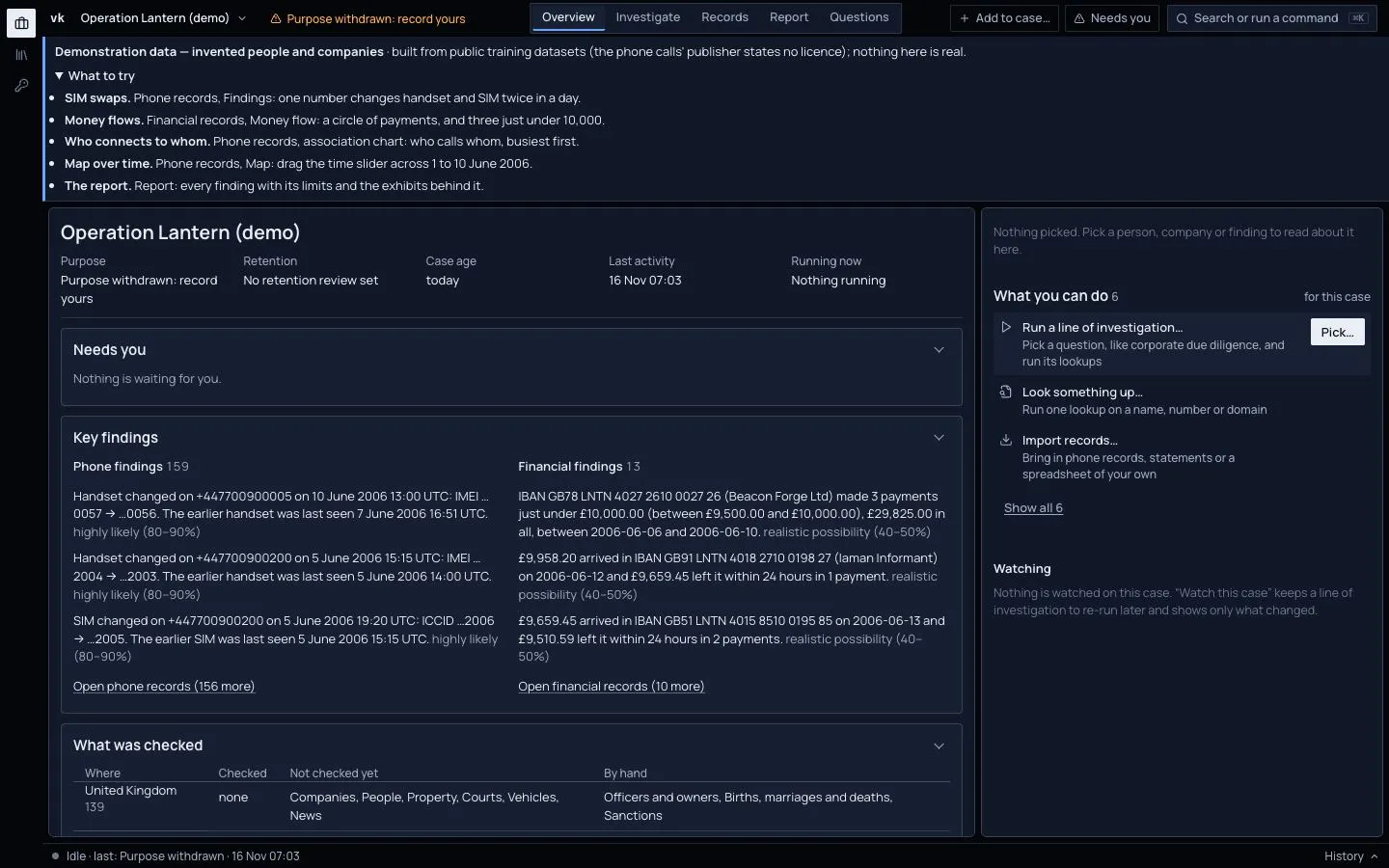
The case bar, along the top, names the case (its menu holds New, Branch, Open file, Export and Delete), shows the purpose recorded for looking up people (No purpose recorded until you record one, or Purpose withdrawn: record yours when the case came from a file whose purpose was withdrawn on import), has Add to case… to put something you already know on the case, and a Needs you counter for what waits on you, such as matches to review. Search or run a command (Ctrl K, ⌘K on a Mac) finds any command, thing or view by typing.
The rail, the narrow strip of icons on the left, holds what sits outside a case: Cases, Sources & keys and Settings. Hover over an icon for its name.
Four workspaces, in the middle of the case bar:
| Workspace | What it holds |
|---|---|
| Overview | The purpose, retention and age of the case, what Needs you, Key findings, What was checked by country and kind of record, and recent activity: the same history the History drawer shows. |
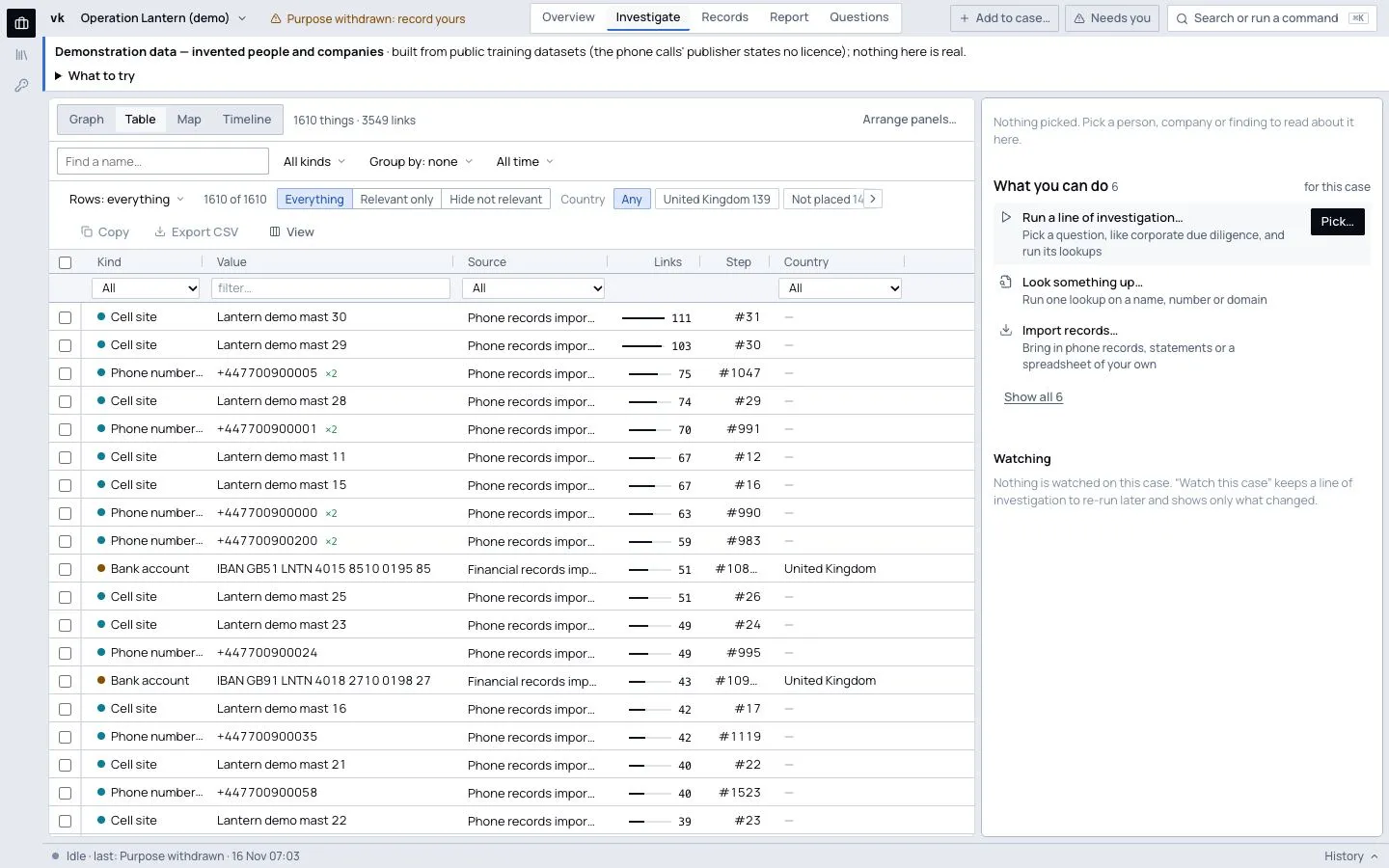
| Investigate | Graph, Table, Map and Timeline, sharing one filter row: Find a name…, All kinds, Group by, the time range. See Look things up and explore connections. |
| Records | What you imported: Phone, Financial, Messages and Imports (each file with its exhibit reference and custody). |
| Report | The report builder, with notes and evidence below it. |
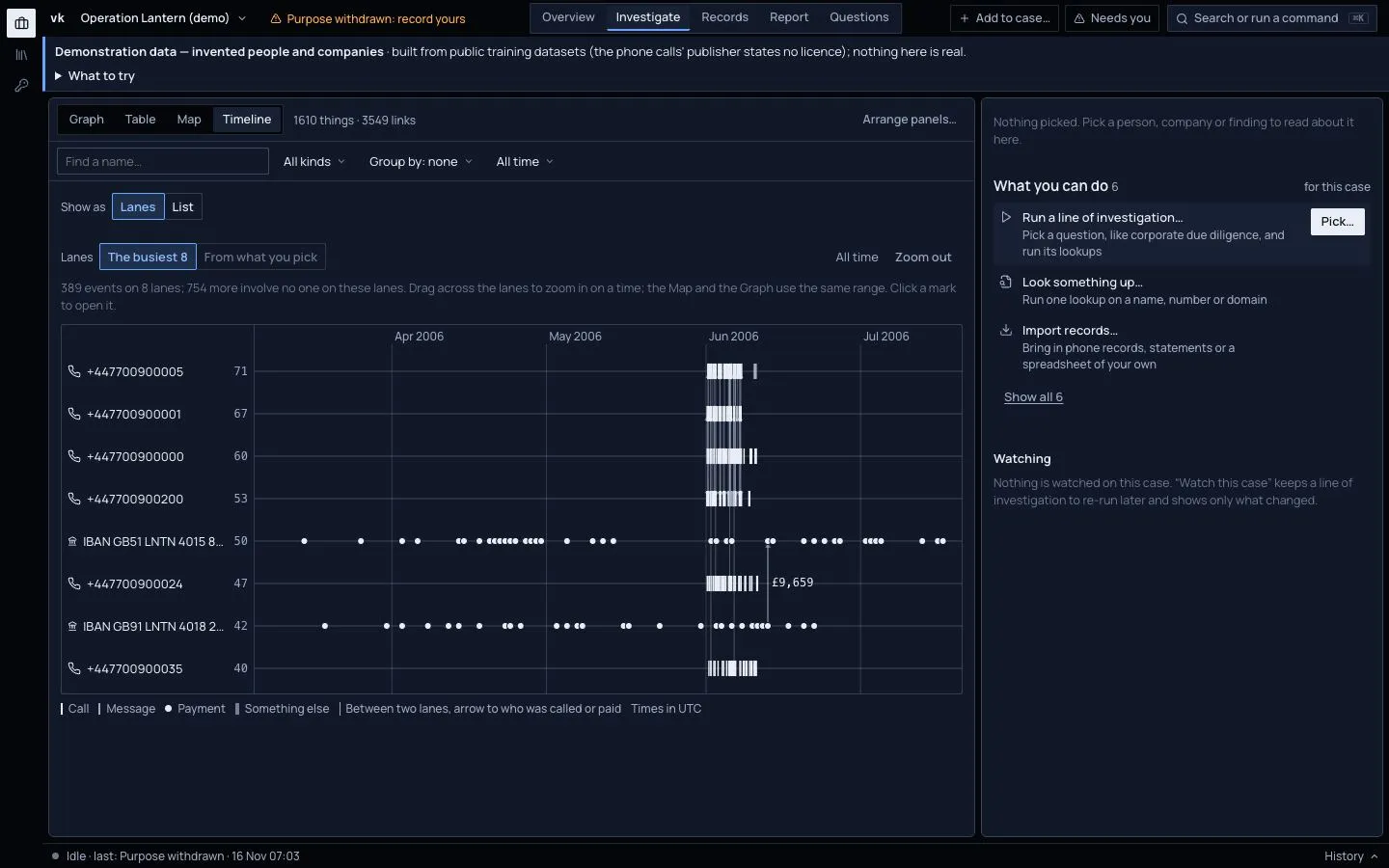
Timeline shows Lanes or a List. Lanes give one line per person, phone or account, a mark at the time of each call, message or payment, and a tie between two lanes for a call or payment between them, with the amount for a payment. Choose The busiest 8, or pick something first for The picked one and who it deals with most (Shift-click picks several). Drag across the lanes to zoom in on a time: the Map and the Graph narrow to the same range, and Zoom out or All time goes back. Click a mark to open that record, or a name to open it. The List shows everything dated, including filings, court cases and articles.
The dossier, on the right. Click anything and it shows what it is, What you can do next (each action says what it will do and, if it cannot run, why), key facts with where each came from and its grade, red flags, links and notes. With nothing picked it lists what you can do for the case.
The status bar, along the bottom, says what is running, with progress and time. When nothing is, it says what was done last and when, for example "Idle · last: Imported lantern-calls.csv · 14 Nov 16:22", even if that was before you opened Viokit. Click History for everything that has happened in the case: each lookup, import, line of investigation, item you added and purpose, with when, by whom and what it added.
Tools such as Expand from here and How is this connected to… draw on the view you have open and name what they show in a bar with a ✕. Press ✕ to see the whole case again. Arrange panels… puts views side by side, the Map beside the Graph say.
Press ? for the keyboard shortcuts.
A narrow window
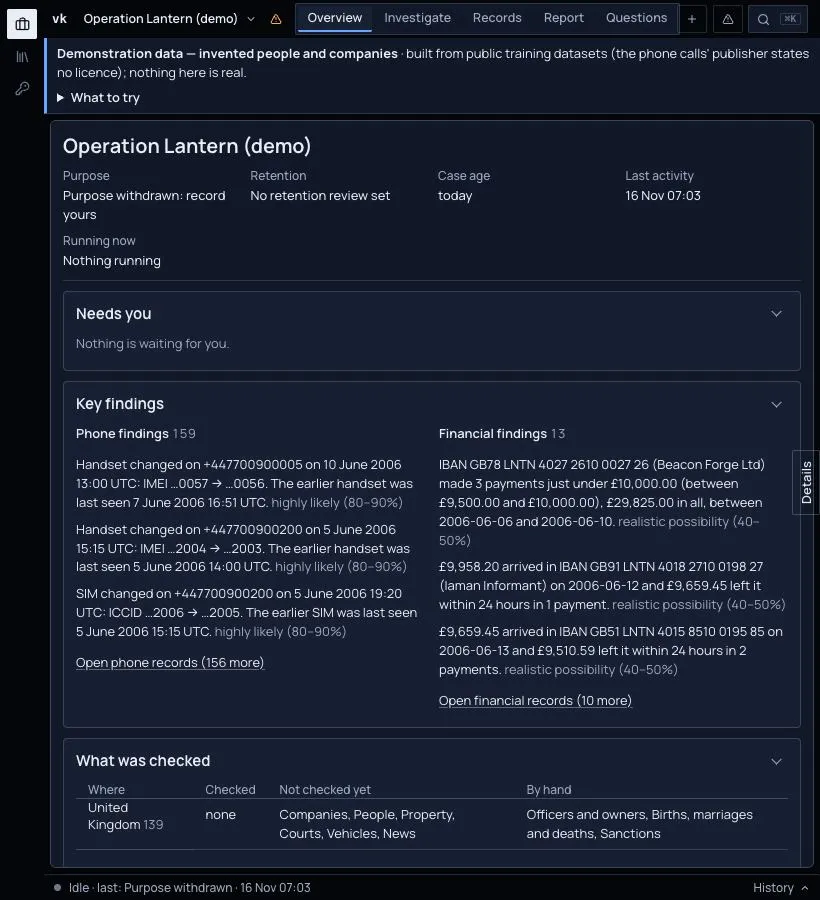
In a narrow window the dossier folds away behind a Details tab on the right edge, the case bar keeps only icons for the purpose, Needs you and search, and Overview's sections stack. Press Details to open the dossier.
Light or dark
The console opens dark. Press Ctrl K (⌘K on a Mac) and choose Switch to the light theme. Your choice is kept in this browser.
How evidence is graded
Viokit grades two separate things. Do not mix them up.
1. The evidence: Admiralty grades such as A1 or D4.
The letter says how far the source can be relied on.
| Letter | Meaning |
|---|---|
| A | Completely reliable. An official register or list. |
| B | Usually reliable. Curated, but a step from the register. |
| C | Fairly reliable. Faithful about what it published, but the publisher controls the content. |
| D | Not usually reliable. Self-declared or weak, such as a username match. |
| E | Unreliable. A history of bad information. |
| F | Cannot be judged. |
The number says how far this particular fact is borne out.
| Number | Meaning |
|---|---|
| 1 | Confirmed by other sources. Two or more independent publishers say it. |
| 2 | Probably true. One good source says it. |
| 3 | Possibly true. One fair source says it. |
| 4 | Doubtful. Only weak sources, or another source disagrees. |
| 5 | Improbable. A reliable source contradicts it. |
| 6 | Cannot be judged. |
So A1 is a register entry that another publisher confirms. D4 is a name from a whois record and nothing else. Two lookups of the same register are one publisher, not two. Asking twice is not confirmation.
If you work in UK policing, you can show the same grade in the UK 3x5x2 form instead. Choose it in Settings, under Other settings.
You can grade a source differently for one case, with a reason. The change is recorded with your name and the time.
2. The judgement: likelihood words.
When Viokit says how likely something is, it uses the UK probability yardstick. The words always carry their range.
| Term | Chance |
|---|---|
| remote chance | 0 to 5% |
| highly unlikely | 10 to 20% |
| unlikely | 25 to 35% |
| realistic possibility | 40 to 50% |
| likely | 55 to 75% |
| highly likely | 80 to 90% |
| almost certain | 95 to 100% |
The gaps are on purpose. They stop a word sounding more exact than the evidence is. Nothing is ever called certain. A claim nobody has assessed shows no word at all. That is not the same as unlikely.
A fact can be graded A2 while the conclusion built on it is only "likely". The first says how good the record is. The second says how sure Viokit is about what it means.
Hover over a grade chip in the console for its meaning in words. The full rules are in Assessment language.