How to add an exhibit and analyse it
An exhibit is any item of evidence you hold: a document, a photograph, a video, an audio recording, an archive, a seized phone, or a physical object you describe and photograph. Viokit keeps the file exactly as you gave it, with a fingerprint (SHA-256), and keeps a custody log of who had it and what was done to it. Tools can then read the file: its metadata, the text in an image, the speech in a recording, frames from a video.
Before you start:
- Hold the authority the item was obtained under: a warrant, a production order, consent, or open source. Viokit records what you state. It does not judge it.
- Give each item the reference you use on your exhibit labels (
EXH/JS/1). Leave it blank and Viokit numbers the itemsX-1,X-2and so on.
Add an exhibit
Open Records. Exhibits is the first entry on the left, under Evidence held. Press Add an exhibit….
- Choose A file or A physical item.
- For a file, drop it on the box or choose it. Any file is accepted, up to 256 MB. Viokit guesses its type from the name and fills in the title; change either. For a physical item, describe it and attach photographs if you have them.
- Fill in what you know: who produced it (the author, the camera, the device), who it was obtained from, when and where, and the authority. Received by starts the custody log; it is you when left blank. Times are UTC.
- Press Add the exhibit.
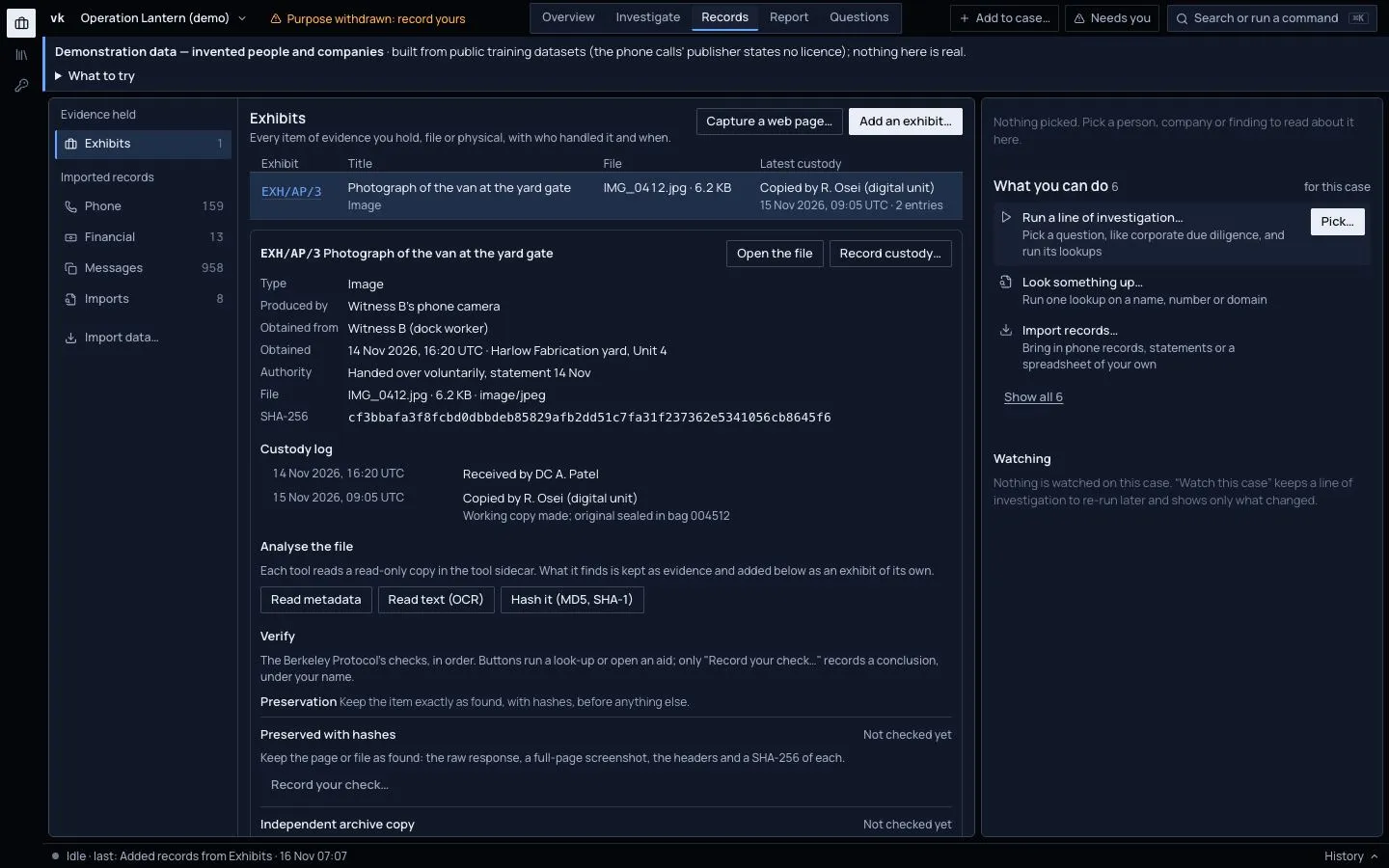
The new exhibit opens below the list. Open the file shows it in the Evidence panel, with the same fingerprint the case history cites. A PDF or a video is not opened in the console: use Download original there and open it where you would open any file from this source.
Adding an exhibit twice with the same reference is refused, so a label always means one item.
Keep the custody log
Every time the item changes hands or is worked on, press Record custody… on the exhibit and say what happened: received, examined, copied, transferred (to whom, which is required) or returned, by whom, when, and a note.
The log only grows. An entry cannot be changed or removed later; to correct one, add another with a note. Each entry names the fingerprint of the file, so the log is tied to the exact bytes you hold. Every entry is in the case history and travels in a case file.
Analyse the file
Under Analyse the file each tool that fits the exhibit has a button. What a tool finds is kept as evidence and
appears under Extracted from this exhibit as an exhibit of its own (EXH/JS/1/metadata, EXH/JS/1/ocr,
EXH/JS/1/transcript, EXH/JS/1/frame-00030), which you can open like any other. Each run adds an Examined entry
to the custody log naming the tool.
| Button | Tool | For | What you get |
|---|---|---|---|
| Read metadata | ExifTool | any file | The metadata record; the camera, its serial number, the software, the author and the creation time; where and when the file says it was made |
| Read text (OCR) | Tesseract | images, documents | The text read from the image, searchable |
| Transcribe speech | whisper.cpp (base model, on your machine) | audio, video | What was said, a line per passage with its time |
| Take frames | FFmpeg | video | A picture every so many seconds (10 unless you change it) |
| Hash it (MD5, SHA-1) | coreutils | any file | Two more fingerprints, for known-file lists |
The tools read a read-only copy of the file, not the original, and nothing is sent anywhere. If a tool cannot run, its message says what to start and how.
Read what the tools say honestly
- Metadata can be edited. A place or time in a file's metadata is shown as "the file's metadata says it was made at …", graded probable at best, and placed on the map as a claim of the file. Anyone who held the file could have changed or removed it, and a camera clock is often wrong or in another time zone. When the file does not say which time zone, Viokit says so. Treat it as a lead to check, not as a verified place or time.
- OCR and transcription are readings. Characters and words can be wrong, names and numbers most of all. Check a phrase against the image or the recording before you rely on it.
- A frame is the video's own picture at that moment. What it shows still needs interpreting.
Verify it
To check where an item came from, when it first appeared and whether its claimed place and time hold up, or to capture a web page as an exhibit, see Verify a photo, video or web page.
For agents
Every step here can also be run by an AI agent, through the same operations the console uses, and what it records is the same.