How to import your own data
Everything you import joins the same graph as the lookups. A company in your spreadsheet and the same company from Companies House become one thing.
Before you start:
- Hold the authority the material was obtained under: a production order, a warrant, consent, a contract. Viokit records what you state. It does not judge it. You are the controller.
- Record a purpose for the case. Importing records about people is refused until you do. See Researching a person lawfully.
- Import only what your authority covers. Use a date range if it helps.
- Use invented or public data while you learn.
Every import records a chain of custody: an exhibit reference, where the file came from, who handed it over, and a fingerprint of the file. You must give the exhibit reference and the source.
Your own spreadsheet
Open Records and press Import data… on the left, or use Ctrl K (⌘K on a Mac) and type "Import data", or import a spreadsheet on Start here. It has five steps.
- File. A CSV, TSV or JSON lines file. The first rows are shown, and under each heading what its values look like (emails, phone numbers, company numbers, dates). Nothing is recorded yet. An Excel file is not read directly. Save it as CSV first.
- Columns. Say what each row describes (a person, a company, a vehicle) and which column fills which field. Viokit guesses. Correct it. Beside each column it says how many values it could read ("41 of 45 parse").
- Links. Optionally, a second thing on each row and how the two are linked, such as "employee, employed by, company". Optionally a date column. Or say each row is an event, such as a payment or a meeting.
- Source. The exhibit reference, where it came from, and your grades for the source (A to F) and the information (1 to 6). If you grade, say why.
- Check and import. A dry run in plain words: "42 people, 4 companies, 42 links, 6 rows skipped", why each skipped row was skipped, and how many things already match the case. You can save the column choices for the next file. Then press Import.
A row is skipped when a key value cannot be read, for example a one-word person name or a company number that cannot exist. Viokit never repairs a value by guessing. A property that cannot be read is left out and the row is still imported.
Matches against what the case already holds are automatic when an identifier is the same. When only a name matches, Viokit proposes it under Matches to review. It never merges on a name alone.
Phone records
Open Records › Phone and its Import tab.
- Pick the file: a call data record from a provider, an extraction report from a phone tool, or a cell site list.
- Check the column mapping against the preview.
- Enter the exhibit reference, the source, the country the numbers belong to, and whose records they are.
- Import. The file's fingerprint is shown.
By default message text is not kept. Only who, when and how long. Keeping text or device-reported positions is a separate, ticked option with a warning.
A cell site list describes masts, not people, so it does not need a purpose.
A device extraction
The same panel reads extraction reports from phone forensic tools. Use the same wizard. Message bodies are left out by default. Positions that the device reported are left out unless you tick that option.
Bank statements
Open Records › Financial, then its Import tab. Pick a statement. Check the mapping. Enter the source and exhibit reference. Import. Each account becomes a thing and each payment an event, with the amount, currency and date.
Currencies are never converted. Flows and findings are worked out for each currency separately.
After an import
- A summary offers next steps, such as running lookups on the companies you imported, or checking the people and companies for sanctions. It runs the first ten, and shows progress in the case bar.
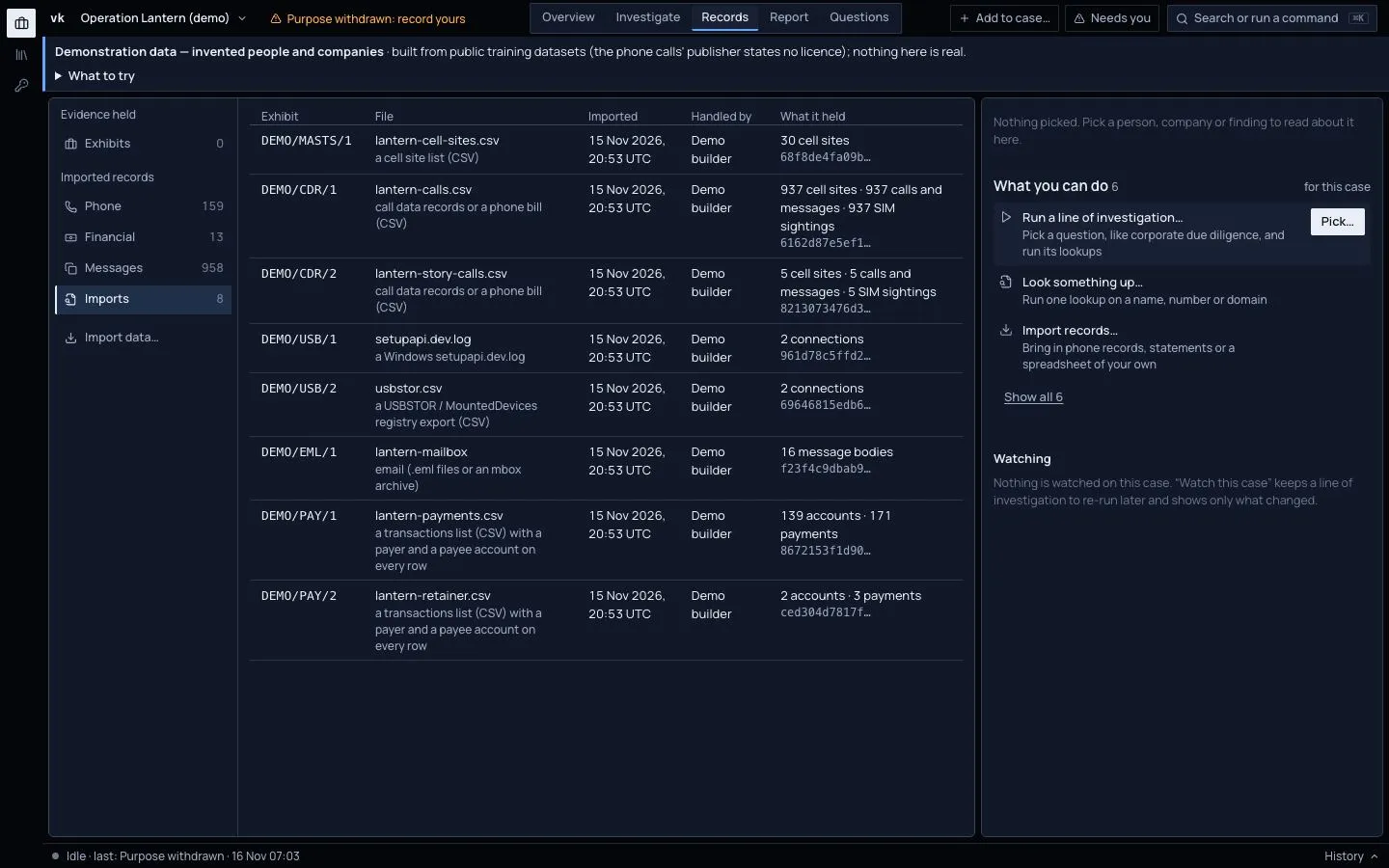
- Your file is kept as an exhibit with its fingerprint. Records › Imports lists every file with its exhibit reference, when it was imported, who handed it over, what it held and the start of its fingerprint.
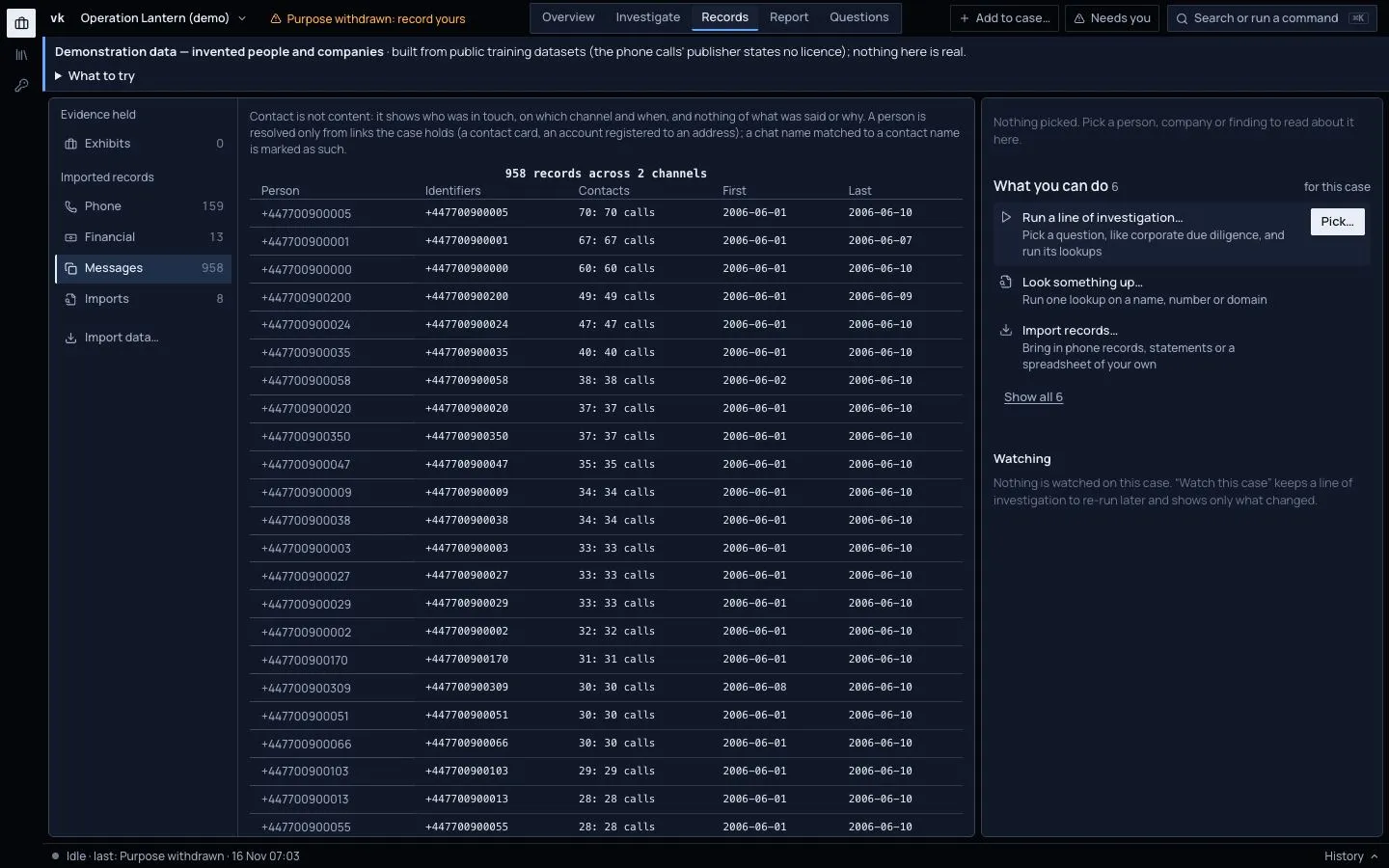
- Messages and emails from extractions and mailboxes are under Records › Messages.
- Imported records you hold in a sensitive dataset are kept out of exports and AI suggestions unless you include them.
Every format, field and rule in detail: your own table, phone records and device extractions, financial records.